Closed Captioning
Closed captioning is now supported for video and audio files hosted within the Kiddom platform. This includes:
Captioning for Kiddom-Hosted Video and Audio Files
This feature will be available for most existing and newly uploaded video and audio files that are hosted by Kiddom across our curricula. Please note: Closed captioning will not be available for videos requiring students to spell words, as is the case with the Unlock Phonics curriculum.
Enhanced Student and Teacher Experience
Although initially developed as a student-facing accessibility enhancement, both students and teachers can now activate closed captioning for supported multimedia.
Updated Multimedia Players
We have made updates to our existing embedded video and audio players to accommodate our new accessibility features, enabling users to control captions directly from the player with the click of a button.

How do I/my students use closed captions on videos?
All users will have the option to turn on/off captions by clicking on the button at the bottom of the video player.

Once enabled, captions will start to appear at the bottom of the video screen.

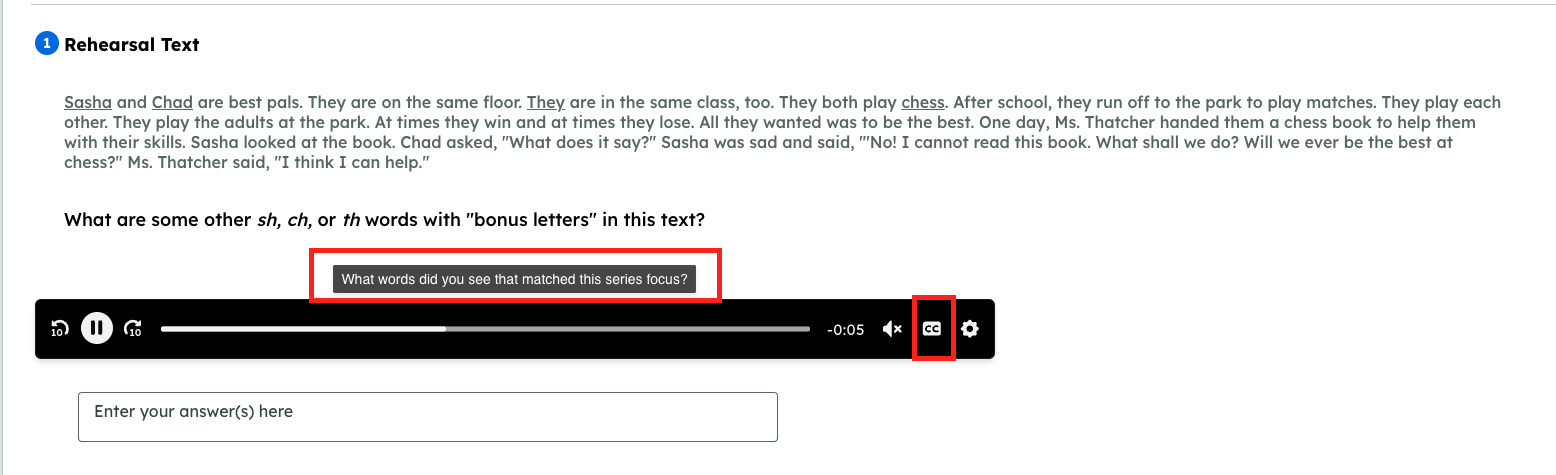
How do I/my students use closed captions on audio files?
Similar to video files, audio files now include a closed captions button. When activated, captions will appear while the audio file is playing.