Individual Student Report View
- Collaborative conversations between educators and students to foster academic ownership.
- Effective data sharing during parent-teacher conferences, IEP meetings, and other key discussions where student growth is reviewed.
What Information Does the Individual Student Report View Display?
The Individual Student Report (ISR) View closely mirrors the overall Class Report View, but is tailored to display the progress of a single student. It provides a clear snapshot of the student's advancement in the course, including mastery of standards and a comprehensive list of assigned activities. To support focused analysis, educators can use the drop-down menu at the top of the report to filter the data, viewing all student data, or narrowing it down to show only summative or formative assessments.
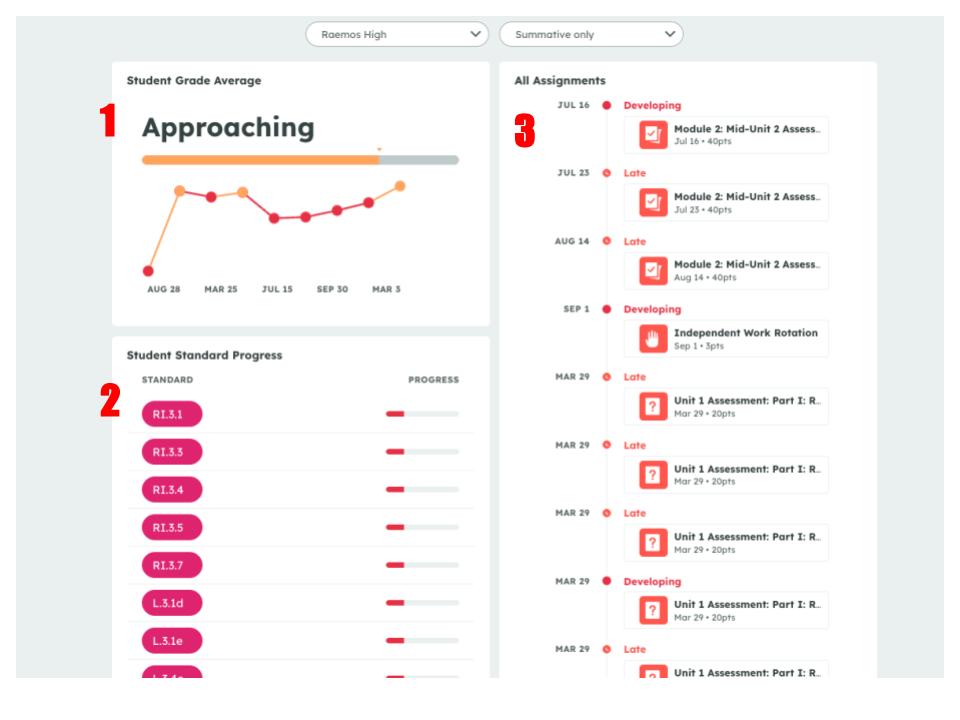
- Student's progress throughout the course
- Student's mastery of standards
- Student's assigned activities
The list of assigned activities includes all key details about each assignment, such as the student’s mastery level, submission timeliness, and grading status. By clicking on an individual assignment, educators and caregivers can view the student’s submitted work along with any feedback provided by the teacher, offering a complete picture of performance and progress.
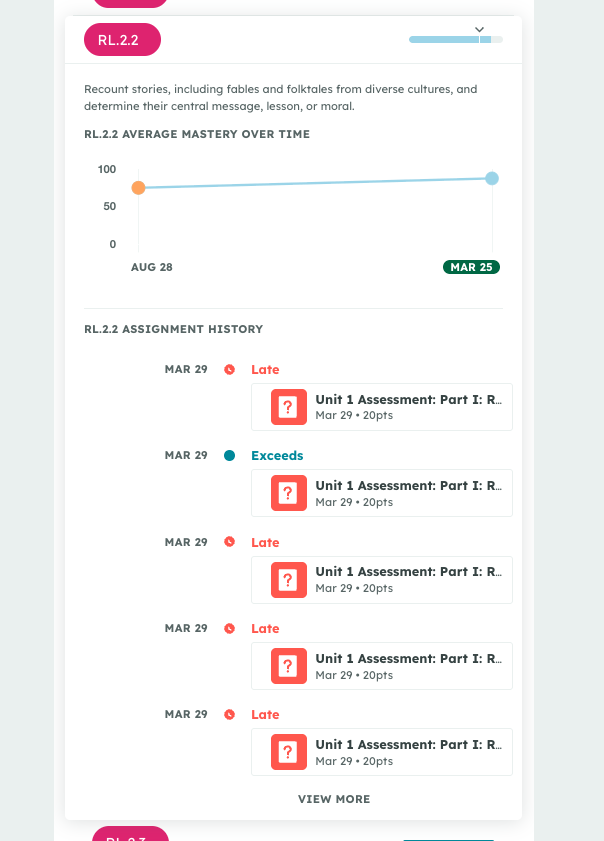
Mastery of Standards
Just like in the Class Report View, educators can explore a student’s progress on a specific standard in more detail by selecting it. This action opens a dedicated view that displays the student’s performance on that standard, along with a list of the related assignments that contribute to their mastery.